

What that little screen on a desktop GaN charger is actually measuring, why some chargers use a touch button and others a rotary knob, and what it costs to add a display to an OEM order.
Plug four devices into a charger with no display and you have to take it on faith that everything is charging the way the box promised. Plug them into a charger with an HD display and you can watch, in real time, exactly how many watts each port is delivering and whether the internal temperature is behaving itself.
That shift — from a sealed black box to an instrumented, legible device — is one of the more interesting product trends in the multi-port GaN charger category over the past two years. It is also one of the most commonly misunderstood specifications by buyers, who often cannot tell from a product photo whether a “smart display” actually measures anything or is simply a static printed icon.
This guide explains what these displays measure, how the touch and rotary controls work mechanically, what it costs to manufacture, and what to specify if you are sourcing a display-equipped charger as an OEM buyer.
The short version
A genuine GaN charger display reads live data directly from the power-management microcontroller — not a simulation. It typically shows per-port voltage/current or wattage, internal temperature, and total combined output. Adding this capability requires a display driver IC, dedicated firmware, and a redesigned housing, which is why display-equipped models sit in the mid-to-premium price tier rather than entry-level chargers.
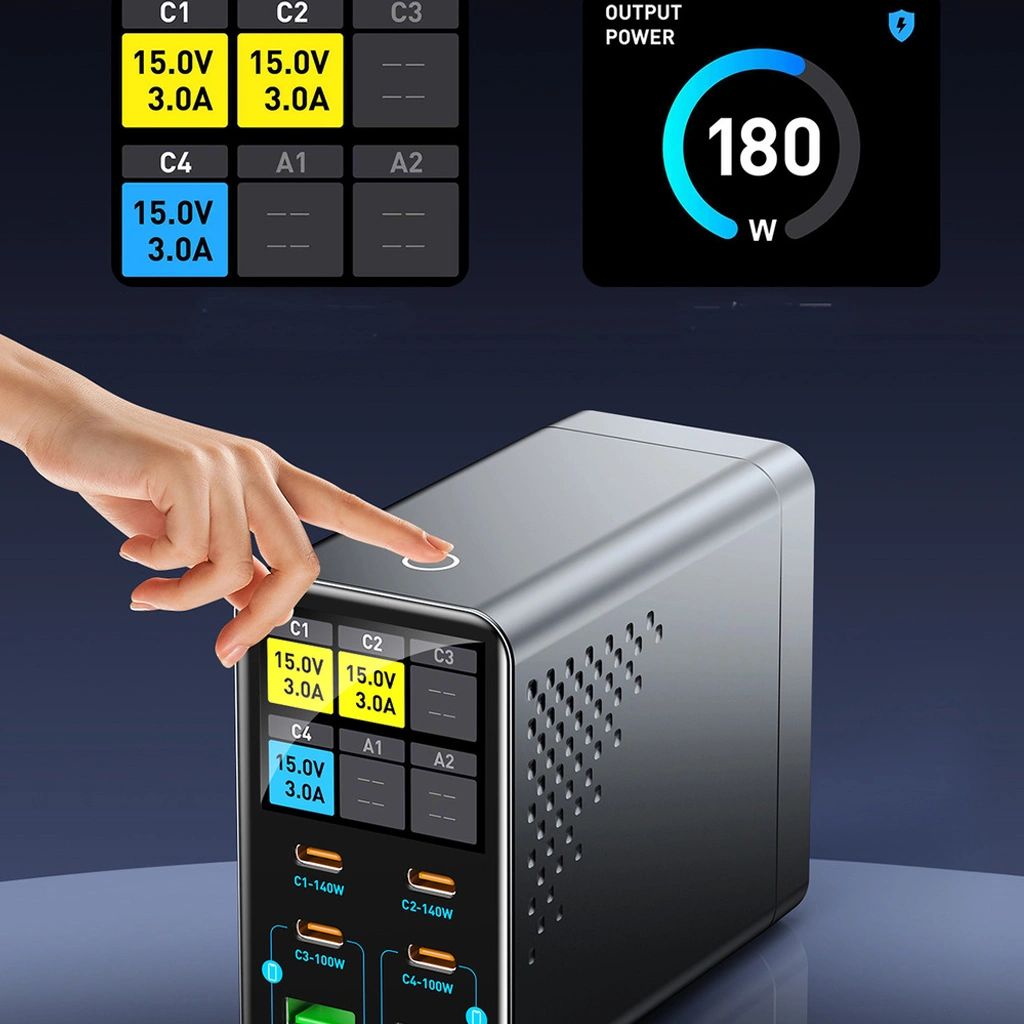
Table of Contents
What the Display Actually Measures
Inside every multi-port GaN charger sits a power-management microcontroller (MCU) responsible for negotiating charging protocols with each connected device and allocating wattage across ports. On a non-display charger, this data exists only inside the chip — invisible to the user. On a display-equipped charger, that same data is piped to a small screen.
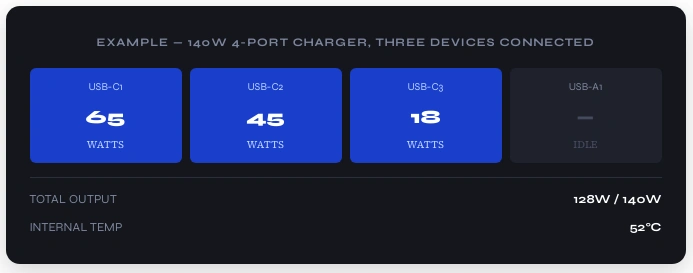
Three data categories appear on essentially every HD GaN charger display:
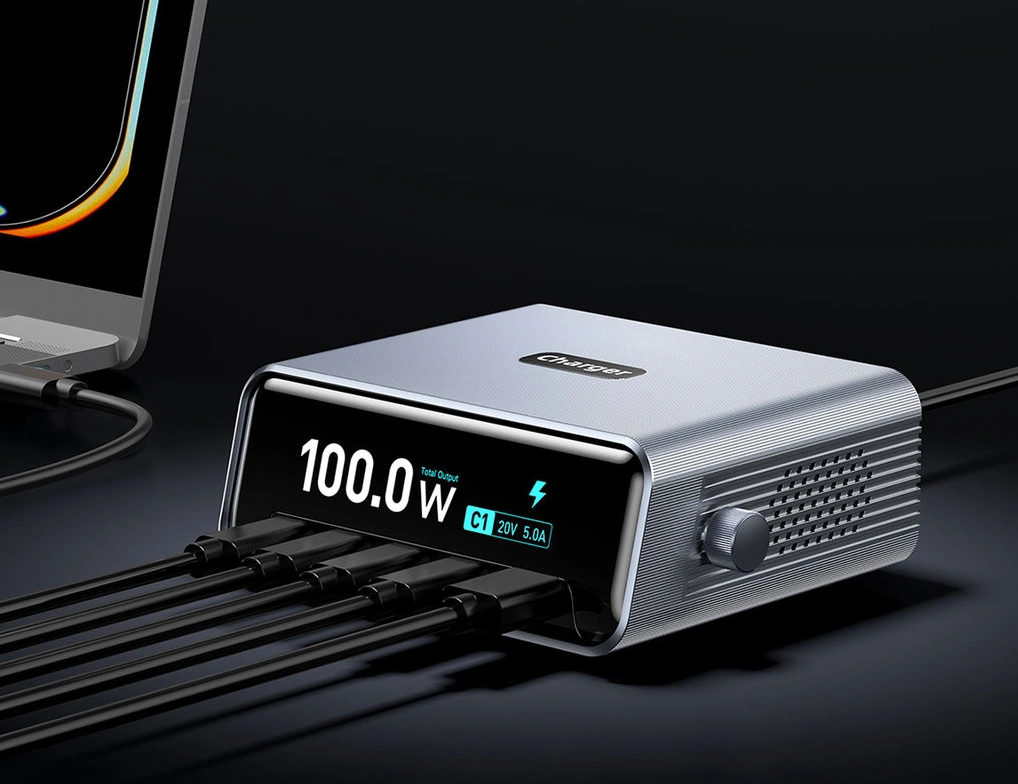
- Per-port output. Either raw voltage and current (e.g. “20V / 3.25A”) or a simplified wattage figure (e.g. “65W”). Simplified wattage is more common on consumer-facing products; raw V/A figures appear more often on chargers marketed toward technically literate buyers.
- Internal temperature. Read from a thermistor placed near the GaN switching stage — the hottest point inside the enclosure. This is the single most functionally useful reading on the display, since it gives an early warning if a fault condition or poor ventilation is pushing the unit toward its thermal protection threshold.
- Total combined output. A running sum of all active ports against the charger’s rated maximum — useful for understanding when adding one more device will trigger power redistribution to existing ports.
Higher-end implementations add a fourth layer: port status icons distinguishing “actively charging,” “fully charged / trickle,” and “fault” states, sometimes alongside a small animated icon indicating which fast-charge protocol (PD, QC, PPS) has been negotiated with each connected device.
How to tell a real display from a decorative one
Some budget multi-port chargers include a small screen that shows only a static icon or a single non-changing wattage figure regardless of what is plugged in. The test is simple: connect two devices with clearly different power needs (e.g. a phone and a laptop) and watch whether the displayed numbers for each port actually differ and update within a second or two. If the numbers do not change with load, the display is cosmetic rather than functional.
The Hardware Behind the Screen
Three additional components are required to add a functioning display to a GaN charger design that did not originally include one:
Display Panel Type
Most multi-port GaN chargers use one of three panel technologies, in increasing order of cost and visual quality:
| Panel Type | Typical Size | Visual Quality | Relative Cost | Common In |
|---|---|---|---|---|
| LED segment / numeric | 0.3″–0.5″ | Basic — numbers only | Lowest | Entry-level 65W–100W single/dual-port chargers |
| Monochrome LCD | 1″–1.5″ | Moderate — icons + numbers | Low–Mid | Mid-tier 100W multi-port hubs |
| HD colour LCD / OLED | 1.3″–2.4″ | High — full graphics | Mid–High | Premium 100W–240W flagship desktop stations |
Display Driver IC and Firmware
A dedicated driver chip converts the MCU’s power-allocation data into the signal format the display panel requires, and refreshes the screen roughly once per second — fast enough to feel live without unnecessarily increasing the MCU’s processing load. This requires custom firmware beyond what a non-display charger needs: the development cycle for a display-equipped charger typically runs several weeks longer than an equivalent non-display model, because the display UI, refresh logic, and touch/knob input handling all need their own validation pass.
Electrical Isolation
The display and its driver sit on the secondary (low-voltage) side of the charger’s circuit — downstream of the GaN switching stage and isolation barrier — never on the primary (mains-voltage) side. This is a safety-critical design decision, not a cosmetic one: the display must never create a path that could expose a user to line voltage through the screen or its touch surface. Reputable manufacturers validate this isolation as part of standard safety certification testing (CE, FCC, UL).
GaNCharge Engineering Team (Shenzhen, China — Multi-Port Charger Product Line):
“The display itself is rarely the hard part. The hard part is thermal — an LCD panel and its driver IC generate a small but real amount of additional heat, in an enclosure where every cubic millimetre is already accounted for by the GaN switching stage and the heat it produces. On our 140W and 200W+ display models, we route the display board away from the hottest zone near the transformer, and we validate full-load thermal performance with the display active for at least four hours before approving a design for production.”
Touch Button vs. Rotary Knob: Two Different Interaction Philosophies
Once a charger has a display, it needs some way for the user to interact with it — even if only to cycle between views. Two control approaches dominate the category, and they reflect genuinely different product positioning rather than arbitrary design choice.
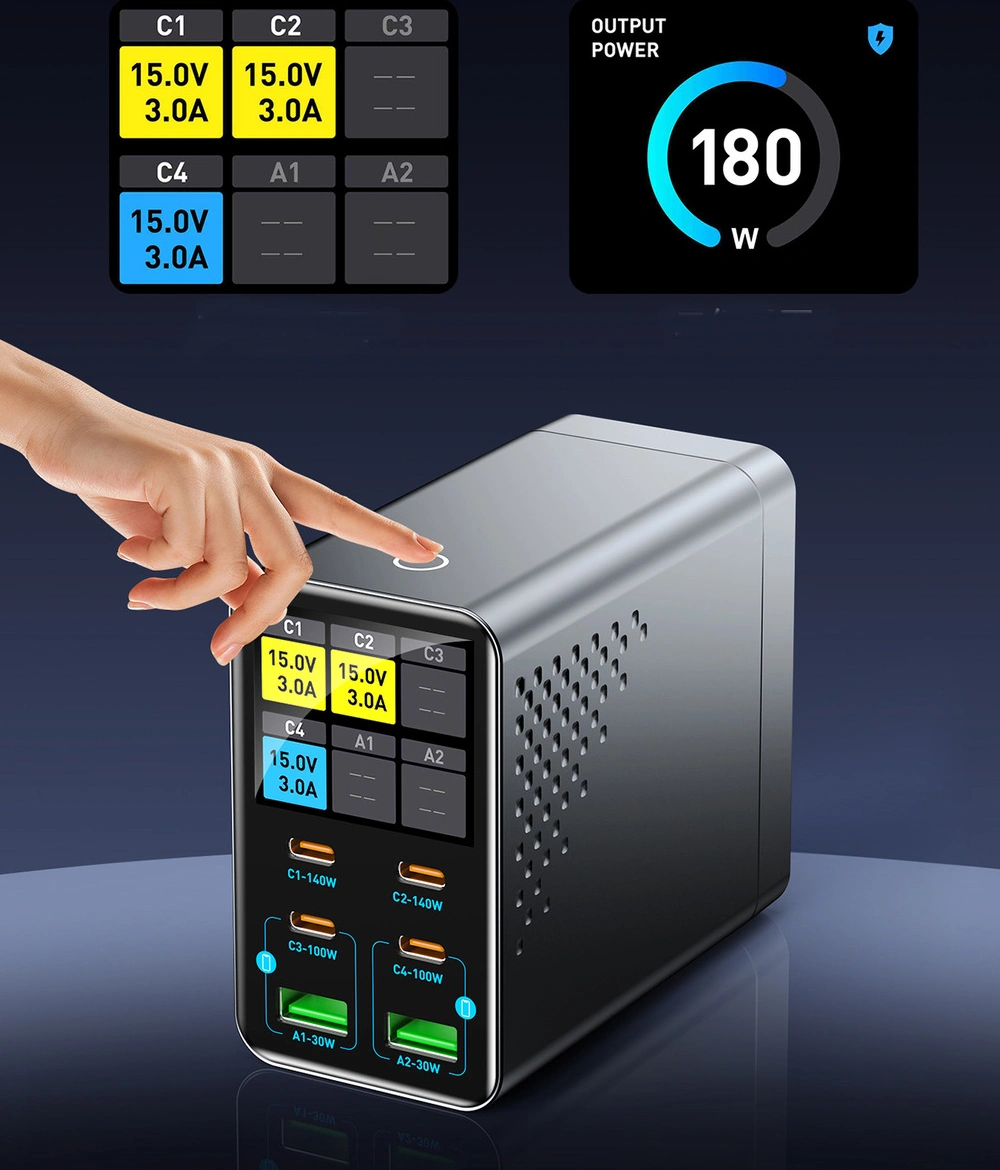
A flush, sealed sensor under the housing surface — no moving parts, no gap for dust or liquid ingress. Typically a single tap cycles between display views (per-port detail → total wattage → temperature). Cheaper to manufacture and more durable over time since there is no mechanical wear point. Suits slim, minimalist, travel-oriented designs.
A physical, turnable dial — mechanically more complex, with a rotary encoder beneath it that must be sealed against dust ingress. Typically controls display brightness or scrolls through a longer settings menu. Borrowed from premium audio-equipment design language. Adds a tactile, “instrument panel” feel that photographs well and differentiates a product on a crowded retail shelf.
Neither approach is objectively superior — the choice is a product-positioning decision. A charger aimed at frequent travellers benefits from the touch button’s flush, snag-free profile. A charger aimed at home-office or gaming-desk buyers, where the product sits visibly on a desk rather than being packed in a bag, benefits from the knob’s tactile distinction.
Why a Display Is More Than a Marketing Feature
It is fair to be skeptical of a feature that also happens to photograph well in a product listing. But the display on a multi-port GaN charger does solve three genuine problems that non-display chargers leave the user to guess at:
1. Diagnosing slow charging
When a laptop charges slower than expected, the cause could be the cable (non-EPR-rated cables cap out below 100W), the port (some ports on a multi-port hub are rated lower than others), or power redistribution (another connected device is consuming part of the shared wattage budget). A display that shows the live per-port wattage makes the cause immediately visible instead of requiring trial and error.
2. Early thermal warning
A charger drawing close to its rated maximum for an extended period — common in office or studio settings where it runs for hours — will show a gradually rising internal temperature reading. A user who notices the temperature climbing unusually high (well above the charger’s normal operating range) gets an early signal to check ventilation or reduce load, rather than discovering a problem only when the charger’s thermal protection cuts power unexpectedly.
3. Trust and transparency at the point of sale
For OEM brands, a functioning display is a credible way to substantiate marketing claims. A spec sheet claiming “100W to your laptop” is just text; a display that shows “100W” the moment a laptop is connected lets the customer verify the claim themselves, in their own home, within seconds of unboxing. This matters disproportionately in markets where buyers have been burned before by chargers that under-deliver on their printed wattage claims.
What It Costs to Add a Display — OEM Considerations
For brands evaluating whether to specify a display-equipped model versus a standard model at the same wattage, the cost and timeline implications break down as follows:
| Factor | Non-Display Model | Display-Equipped Model |
|---|---|---|
| Additional BOM cost | Baseline | Display panel + driver IC + extra PCB routing |
| Firmware development | Standard power-allocation logic | Standard logic + display UI + refresh + input handling |
| Housing tooling | Sealed enclosure | Viewing window + control cutout, added complexity |
| Typical dev timeline impact | Baseline | Several additional weeks for UI validation and thermal testing with display active |
| Retail positioning | Value / budget tier | Premium / flagship tier — supports higher price point |
For most OEM buyers, the decision comes down to target retail price point. If the product is positioned as a value-tier accessory, a non-display model keeps unit cost down. If the product is positioned as a flagship or premium SKU — particularly anything at 100W or above, where buyers are already comparing technical specifications closely — a display becomes a meaningful differentiator that can support a notably higher retail price.
GaNCharge Display-Equipped Models
Specification Checklist for OEM Buyers
If you are sourcing a display-equipped multi-port GaN charger, request confirmation on the following before committing to an order:
- Refresh behaviour. Ask for a short demo video showing the display responding live as devices are connected and disconnected — not a static product photo.
- Display isolation. Confirm the display sits on the secondary (low-voltage) side of the circuit with documented isolation testing as part of CE/FCC/UL certification.
- Thermal validation with display active. Ask whether full-load thermal testing was conducted with the display running, not just with it off — the display driver does add a small heat load.
- Control type fit for your market. Touch buttons suit travel and minimalist positioning; rotary knobs suit desk-bound, premium positioning. Match the control to how your target customer will actually use the product.
- Firmware customisation scope. If you want custom branding on the display boot screen, custom units (W vs V/A), or a different refresh rate, confirm this is within the OEM firmware customisation scope before tooling begins.
Frequently Asked Questions
What does the display on a GaN charger actually show?
Most HD GaN charger displays show three categories of live data: per-port output (voltage and current, or simplified wattage), internal temperature, and total combined output across all active ports. Higher-end displays add port status icons and protocol indicators. Data refreshes roughly once per second, sourced directly from the charger’s power-management microcontroller rather than estimated.
Does adding a display increase the cost of a GaN charger?
Yes. A display adds bill-of-materials cost beyond the screen itself — a display driver IC, additional firmware development, extra PCB routing, and a redesigned housing with a viewing window or touch surface. A basic monochrome LED display adds relatively little; an HD colour LCD with touch or knob control adds considerably more, though this is increasingly expected in the 100W+ premium charger segment.
What is the difference between a touch button and a rotary knob?
A capacitive touch button is a flush, sealed sensor with no moving parts, typically used to cycle between display views. A rotary knob is a physical, turnable control with a sealed rotary encoder underneath, typically used to adjust brightness or scroll through a menu. Touch buttons suit slim, travel-oriented designs; rotary knobs suit premium, desk-bound positioning where tactile interaction is a selling point.
Can a charger’s display affect its reliability or lifespan?
A poorly engineered display can be a liability if it is not properly isolated from the high-voltage primary side, or if its driver generates heat the enclosure cannot dissipate. Quality manufacturers route the display on the low-voltage secondary side behind appropriate isolation and validate that full-load thermal performance with the display active stays within safe limits. Properly engineered, a display has no meaningful impact on lifespan.
Is a display useful, or just a marketing feature?
Both. It has genuine functional value — letting a user instantly diagnose slow charging, spot early thermal warning signs, and verify wattage claims at the point of sale — and clear marketing value, since display-equipped chargers photograph well and differentiate visibly on a retail shelf. For most buyers, the two reinforce rather than compete with each other.
Related Reading
- Multi-Port High-Wattage GaN Chargers — Category Overview
- 140W PD 3.1 GaN Station — HD Display Product Page
- 100W GaN³ Station — Rotary Knob Product Page
- Why 140W+ PD 3.1 Is the New Standard for AI Laptops in 2026
- GaN Charger OEM Manufacturer — Full Capabilities
Seize the Opportunity